Short answer: There are two ways to send a WhatsApp message to a list kept in Excel. For a small list of people who have saved your number, WhatsApp's own broadcast list is enough (up to 256 contacts per list). For a larger list, for contacts who are not in your phone book, or when every message should start with the recipient's name, use a desktop tool such as WhatsApp Express: copy the Excel columns, paste them in, and the software sends the messages one by one.
1. Prepare the Excel List
Whichever method you choose, a clean list is half the work. Two columns are enough:
| Name | Phone |
|---|---|
| Emma Johnson | 14155550123 |
| Daniel Smith | 447700900123 |
- Use the international format: country code first, digits only. Remove the plus sign, leading zeros, spaces, dashes and brackets.
- Format the column as Text: Excel may turn long numbers into scientific notation such as
1.42E+10. Select the phone column and set its format to Text. - Remove duplicates: use Data › Remove Duplicates so nobody gets the same message twice.
- Write the name as you want to greet the person: if the message should say "Hi Emma", put "Emma" in the Name column.
2. Method One: WhatsApp's Built-in Broadcast List
WhatsApp has a free broadcast feature. Your message arrives as a separate chat for each recipient, and recipients cannot see each other.
How to create a broadcast list
- Android: on the Chats screen open the three-dot menu, tap New broadcast and pick the contacts.
- iPhone: on the Chats screen tap Broadcast Lists, then New List, and pick the contacts.
Menu names can differ slightly between WhatsApp versions.
Its limits
- A list can contain at most 256 contacts.
- The message only reaches people who have saved your number in their phone book.
- You have to save every contact in your own phone first; there is no import from Excel.
- No personalization: everybody gets the same text.
3. Method Two: Send Straight from Excel with WhatsApp Express
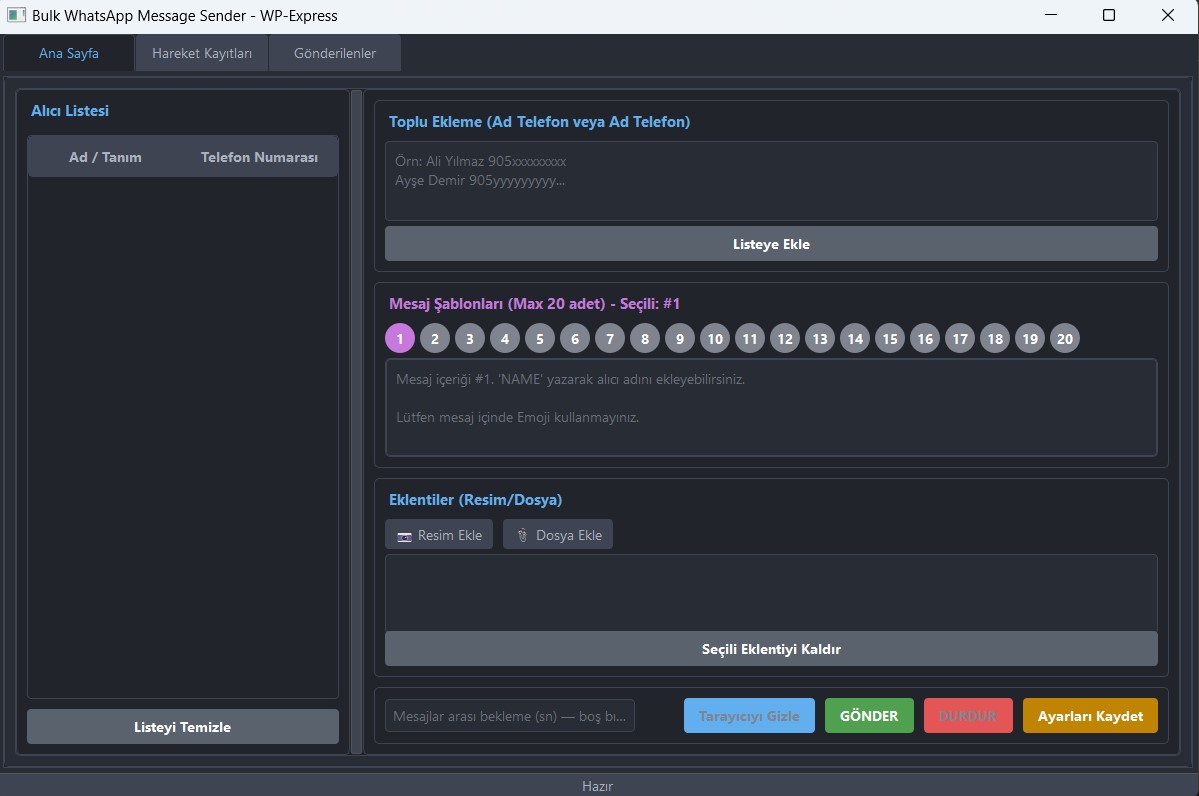
WhatsApp Express is a WhatsApp bulk sender for Windows that works through WhatsApp Web with your own number.
- Install it and link WhatsApp. Scan the WhatsApp Web QR code with your phone.
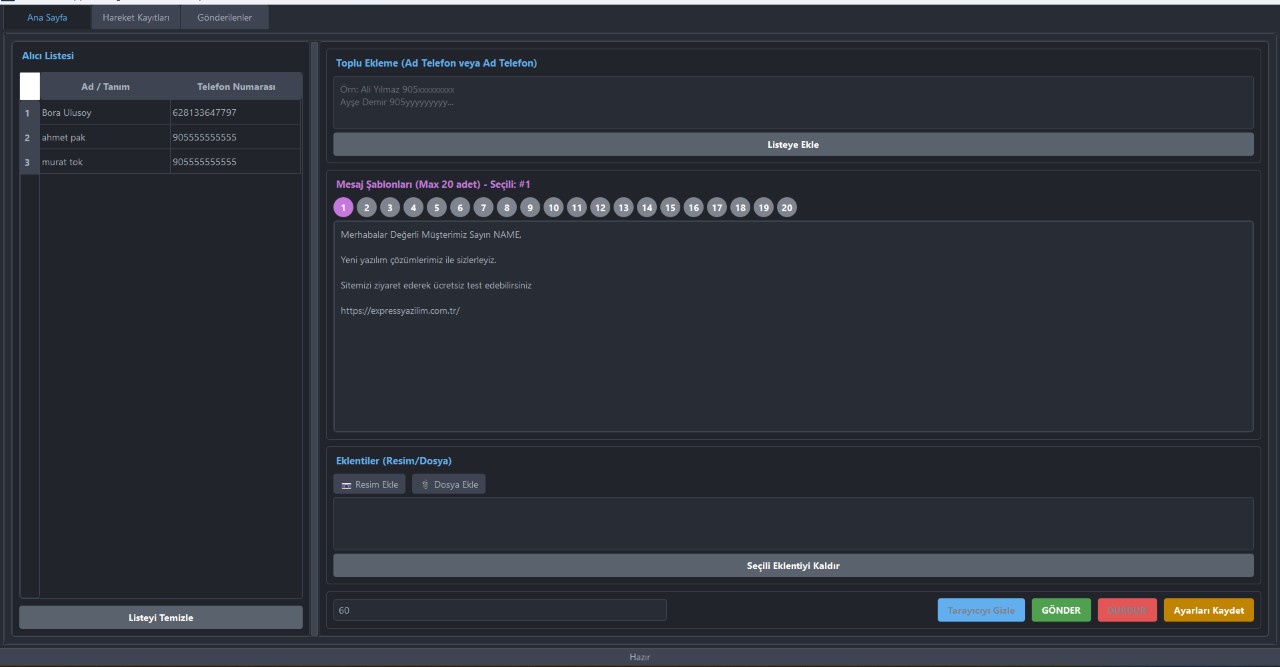
- Copy from Excel. Select the rows in the Name and Phone columns and copy them.
- Paste into the software. Paste the rows into the bulk-add field and add them to the list. Invalid numbers are skipped and written to the log.
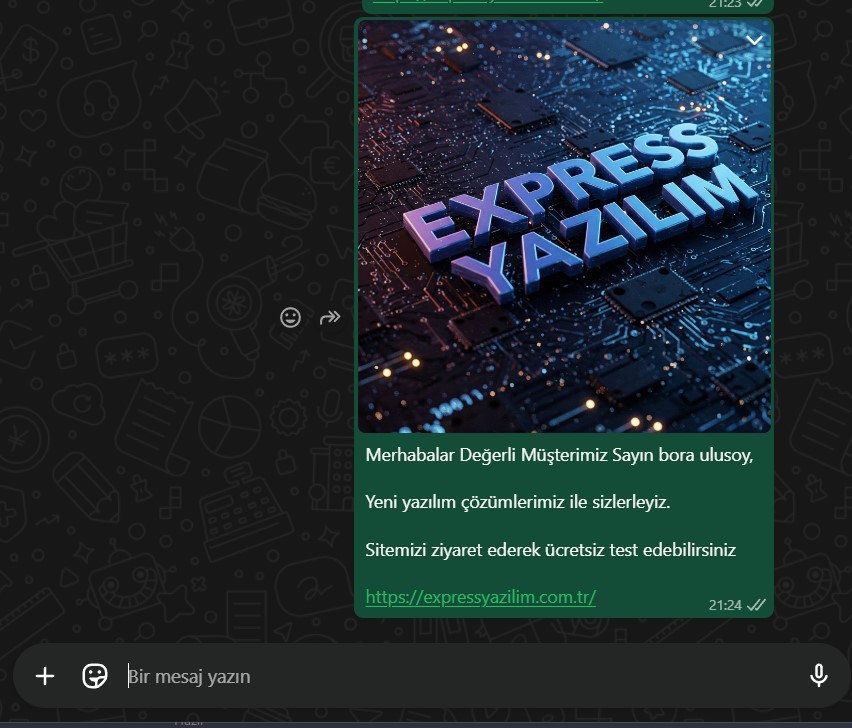
- Write your message. Type
NAMEwhere the recipient's name should appear, for example: "Hi NAME, our winter collection has just arrived." - Add a few templates. Write the same announcement in three or four different ways so your messages don't all look identical. Up to 20 templates are supported.
- Attach a file if you need one. Add an image, a catalogue or a price list. Keeping images under 200–300 KB speeds up sending.
- Set the delay and send. A delay of 30–60 seconds between messages is recommended. You can pause at any time and check the report when the campaign ends.
Tip: Before sending to the whole list, run a test with your own number and one or two colleagues to check that names and attachments look right.
4. Side-by-Side Comparison
| WhatsApp broadcast list | WhatsApp Express | |
|---|---|---|
| Import from Excel | No, contacts are picked by hand | Copy and paste |
| Contact limit | 256 per list | Lists with thousands of contacts |
| Recipient must have saved your number | Yes | No |
| Personalized greeting | No | NAME tag |
| Images and files | Yes | Yes |
| Delivery report | No | Yes |
| Price | Free | Licensed, free 24-hour trial |
5. Common Mistakes
- Leaving a 0 or + in front of the number. Write
447700900123, not07700 900123or+44 7700 900123. - Messaging people who never agreed to hear from you. They report the message, and enough reports get a number banned. Many countries also require prior consent for commercial messages.
- Sending one identical text at high speed. Vary your templates and don't shorten the delay.
- Putting a link in the very first message. When writing to someone who hasn't saved your number, start with a short introduction instead.
Frequently asked questions
Is it free to send bulk WhatsApp messages from Excel?
WhatsApp's own broadcast list is free, but it is limited to 256 contacts per list and cannot import from Excel. WhatsApp Express is licensed software with a free 24-hour trial.
Can I send bulk messages without saving the contacts?
Not with the built-in broadcast list. WhatsApp Express sends directly to the numbers in your Excel list.
What format should the phone numbers have?
Country code followed by the number, digits only, for example 14155550123. No plus sign, spaces or leading zero.
How do I add each recipient's name to the message?
In WhatsApp Express, type NAME in the message. The software replaces it with the value from the Name column when sending.
Will my number get banned?
Any bulk messaging carries risk if recipients report you. Controlled speed and varied templates help, but the most important factor is messaging people who actually expect to hear from you.
Try Your Excel List Free for 24 Hours
Download WhatsApp Express, paste your list and send your first campaign today.
Download free trial WhatsApp bulk sender