Short answer: The simplest way to send a mass email in Gmail is to put the recipients in the Bcc field, so nobody sees the other addresses. If you write to the same people often, create a label in Google Contacts and add them as a group. To start each email with the recipient's name and send from an Excel list, you need Gmail's mail merge (paid plans) or a tool such as Mail Express.
Method 1: Send with Bcc
If you put the addresses in "To", every recipient sees everyone else's email address. That exposes personal data and invites reply-all accidents. Use Bcc instead.
- Click Compose in Gmail.
- Click Bcc at the right of the To field.
- Paste the recipient addresses into Bcc. A column copied from Excel can be pasted directly.
- Put your own address in To.
- Write the subject and the message, then send.
Limits: everyone gets the same text, you cannot greet people by name, and one email can have at most 500 recipients.
Method 2: Create a Group with a Contact Label
If you email the same list regularly, create a group instead of pasting the addresses each time.
- Open Google Contacts at contacts.google.com.
- Select the people you want in the group.
- Click the label icon at the top, choose "Create label" and name it (for example "Dealers").
- In a new Gmail message, start typing the label name in Bcc and pick the group.
If your list is in Excel, save it as a CSV file and use Import in Google Contacts to add and label everyone in one go.
Method 3: Gmail Mail Merge
Gmail has a feature that sends a separate, personalized email to each recipient (it replaced the earlier multi-send mode). You add tags such as @firstname to the text and can pull the recipients from a Google Sheets file.
- It is only available on paid Google Workspace plans, not on free @gmail.com accounts. Check Google's help page for the plans that include it.
- It can send to at most 1,500 recipients per day.
- Google adds an unsubscribe link to the bottom of each email.
Method 4: Send from an Excel List with Mail Express
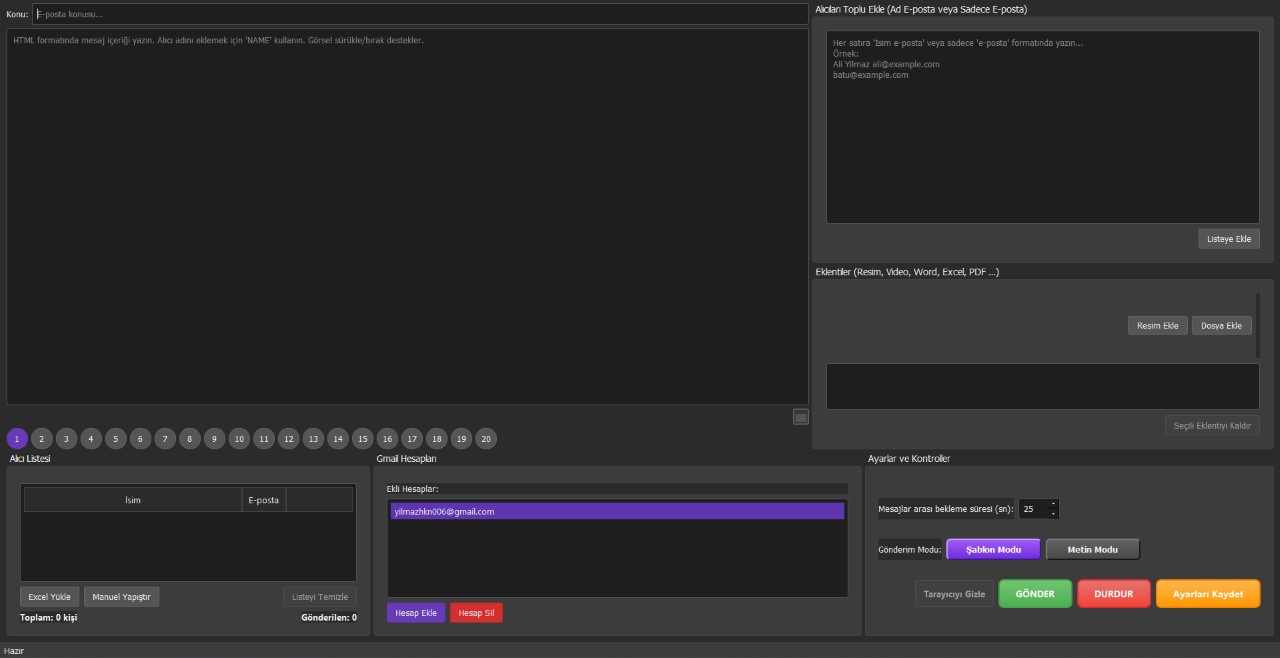
Mail Express is a Windows program that sends through your own Gmail account. It also works with free Gmail accounts.
- Excel import: copy your recipient list from Excel and paste it in.
- Individual, personalized emails: each recipient gets a separate email and sees only their own address. Type
NAMEwhere the recipient's name should appear. - Delay between emails: spread the sending out instead of firing everything at once.
- Several Gmail accounts: split a large list across accounts.
- Report: see which addresses were sent to.
The Four Methods Compared
| Bcc | Contact label | Mail merge | Mail Express | |
|---|---|---|---|---|
| Works with free Gmail | Yes | Yes | No | Yes |
| Recipients hidden | Yes | If added to Bcc | Yes | Yes |
| Personalized emails | No | No | Yes | Yes |
| Excel list | Copy and paste | CSV import | Google Sheets | Copy and paste |
| Delivery report | No | No | No | Yes |
| Cost | Free | Free | Workspace subscription | Licensed, free 24-hour trial |
Whichever Method You Choose: 4 Rules
- Stay under the daily limit. Free Gmail allows at most 500 recipients in 24 hours. See Gmail sending limits.
- Only email people who opted in. Bought lists are illegal in many countries and get your account closed over spam complaints.
- Offer a way out. End with a line such as "Reply to this email if you would rather not receive these" and remove those who ask.
- Keep the list clean. Delete addresses that bounce; many bounces lower your account's reputation.
Frequently asked questions
How do I send a mass email in Gmail without showing addresses?
Put the recipients in Bcc instead of To. Addresses in Bcc are hidden from the other recipients. You can put your own address in To.
How do I create a group email in Gmail?
In Google Contacts (contacts.google.com), select the people and create a label. In Gmail, type the label name in the recipient field to add everyone in the group.
How many people can I email at once in Gmail?
A free Gmail account allows up to 500 recipients in one email and 500 recipients in total per 24 hours. Google Workspace accounts can send 2,000 emails per day.
Can I send a mass email from an Excel list in Gmail?
Yes. Copy the address column and paste it into Bcc, or import the list into Google Contacts as a CSV file. For separate emails that start with each person's name, use a tool such as Mail Express.
How do I send a mass email individually in Gmail?
With mail merge on a paid Google Workspace plan, or with Mail Express. In both cases every recipient sees only their own address.
Email Your Excel List from Your Own Gmail
Try Mail Express free for 24 hours: Excel import, personalized greetings and delivery reports.
Download free trial Bulk email sender